
Codex Tutorial: App, CLI, Windows, macOS, Linux, and API Configuration
This standalone Codex tutorial focuses on three practical questions:
- When should you use Codex App versus Codex CLI?
- How do you install and start Codex on Windows, macOS, and Linux?
- How do you use ChatGPT sign-in or API access?
Purchase entry for the ChatGPT sign-in path:
https://dev.hkgpt.top/shop/40Base URL for the API path:
https://gptapi.asia/v1Recommendation
If you want the fastest path, use Codex App on Windows or macOS, and Codex CLI on Linux. If you need a custom Base URL, team API key, server environment, or scripted workflow, prefer Codex CLI.
Quick Answer
| Surface | Windows | macOS | Linux | Best For |
|---|---|---|---|---|
| Codex App | Supported through Microsoft Store or winget | Supported with Apple Silicon / Intel builds | Official app availability is currently notify-only; use CLI today | Desktop UI, parallel threads, worktrees, review panes, automations |
| Codex CLI | Supported through native PowerShell or WSL2 | Supported | Supported | Terminal workflows, local repos, servers, Linux, custom API providers |
Important nuance: OpenAI's official docs currently list Codex App as available on macOS and Windows. Linux users can register for app availability notifications, but the practical cross-platform path today is Codex CLI. In other words, the Codex workflow covers Windows, macOS, and Linux, but the desktop app is not equally available on every platform yet.
Linux app status
This page stays neutral and factual: Linux can use Codex CLI today. Codex App for Linux depends on OpenAI's future official availability. This guide does not present an unavailable Linux app installer as ready to download.
Windows Quick Path
Windows users should not treat Codex as CLI-only. Codex has two complete Windows paths:
| Goal | Recommended Path | Notes |
|---|---|---|
| Use a desktop interface | Codex App | Install from Microsoft Store, or run winget install Codex -s msstore |
| Work in the Windows filesystem | App or CLI + PowerShell | Fits paths such as C:UsersyouProjects... |
| Use Linux-heavy tooling | App configured for WSL2, or CLI installed inside WSL2 | Fits Bash, Docker, and Linux-native dependencies |
| Use a custom API Base URL | Prefer CLI | Point OPENAI_BASE_URL or ~/.codex/config.toml to https://gptapi.asia/v1 |
The Windows app supports a native PowerShell agent and can also run the agent in WSL2. Official docs also note that Git features require native Git on Windows, and that repeatedly switching the same repository between native Windows paths and WSL paths can cause permission, line-ending, Git-state, or dependency-cache issues.
Official Sources
This page was checked against these official sources:
- OpenAI Codex App docs
- OpenAI Codex CLI docs
- OpenAI Codex Windows docs
- OpenAI Codex App for Windows docs
- OpenAI Codex authentication docs
- OpenAI Codex advanced configuration docs
- OpenAI Codex App Linux notification page
What Codex Is
Codex is an AI coding agent for engineering work. It is not only a chat box. It can work inside project context:
- Read repository structure and explain entry files, dependencies, and core modules.
- Edit code, generate patches, run tests, and run build commands.
- Review diffs for regressions, missing tests, accidental changes, and sensitive data.
- Handle repeated engineering tasks such as issue triage, CI failure analysis, documentation, and release checks.
- Reuse parts of the workflow across the app, CLI, IDE, and cloud tasks.
For daily use, remember two paths:
Codex App: desktop command center for threads, review, worktrees, automations, and visual workflows.Codex CLI: terminal tool for local repositories, scripting, server environments, Linux, and custom providers.
Before You Install
Prepare:
- A small test project directory, preferably already under Git.
- A Windows, macOS, or Linux development environment.
- ChatGPT sign-in, or an API key for the API path.
- Node.js / npm if you use CLI; PowerShell, Git, and
wingetif you use native Windows. - Do not paste real API keys into source code, screenshots, issues, public chat, or documentation.
Part 1: Codex App
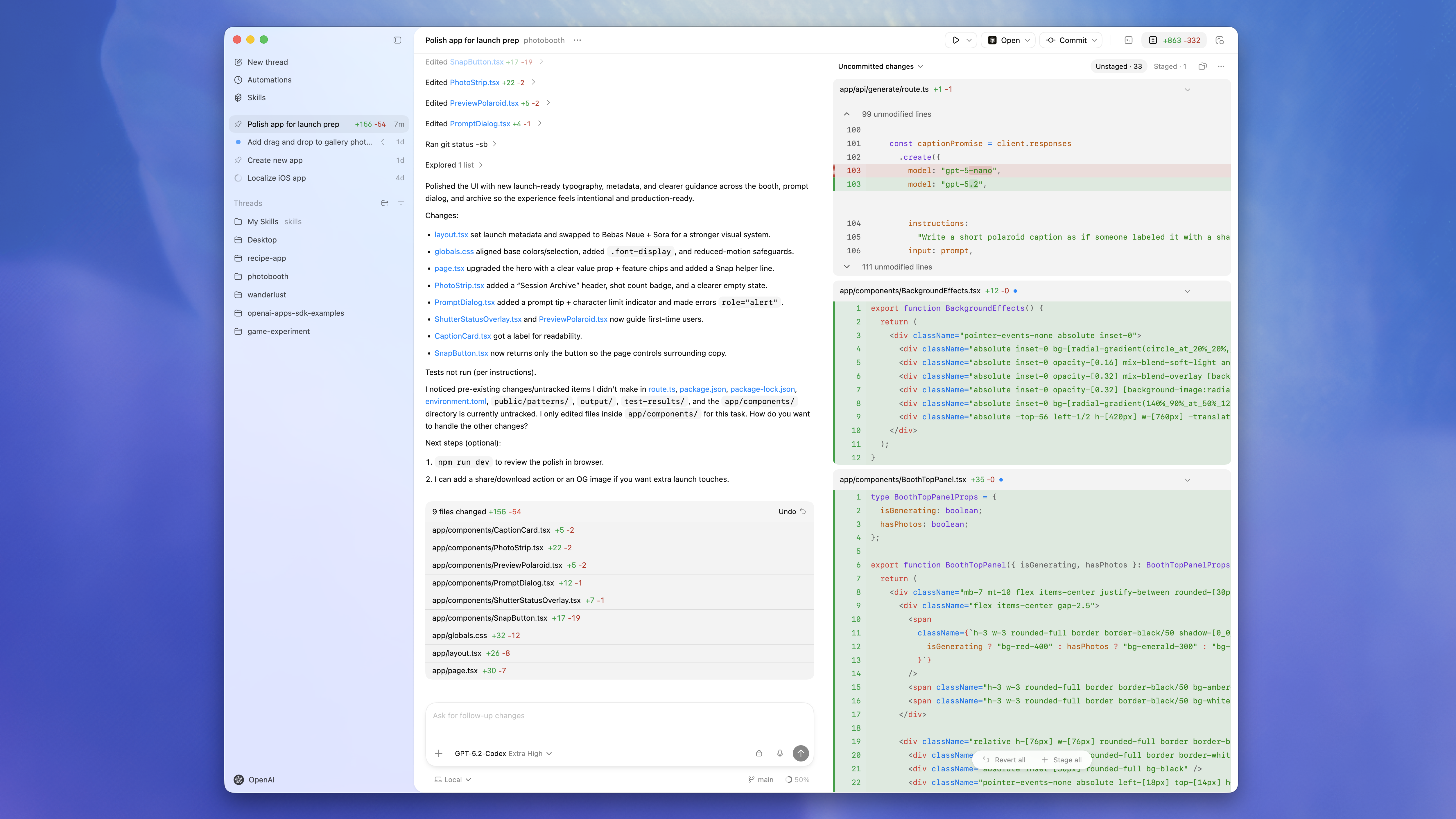
Codex App is for users who want a desktop workspace for managing multiple tasks. It makes project lists, threads, review panes, worktrees, automations, plugins, and skills easier to operate visually. Official docs currently cover macOS and Windows.
App Platform Support
| System | Current Recommendation |
|---|---|
| macOS Apple Silicon | Use the official Apple Silicon build |
| macOS Intel | Use the official Intel build |
| Windows 11 | Recommended; use Microsoft Store or winget |
| Recent Windows 10 | Keep Windows updated; some sandbox and terminal behavior may be less reliable than Windows 11 |
| Linux | Use CLI today; OpenAI provides a notification form for the Linux app |
How to choose an app installer
- macOS Apple Silicon: choose the Apple Silicon build.
- macOS Intel: choose the Intel build.
- Windows: prefer Microsoft Store; command-line users can run
winget install Codex -s msstore. - Linux: use CLI today; register for official app availability if you need the app.
Install the App on macOS
- Open the OpenAI Codex App docs.
- Choose the macOS Apple Silicon or macOS Intel build.
- Install it with the normal macOS app flow.
- If macOS asks for security confirmation, approve the app as appropriate.
- Open Codex and choose
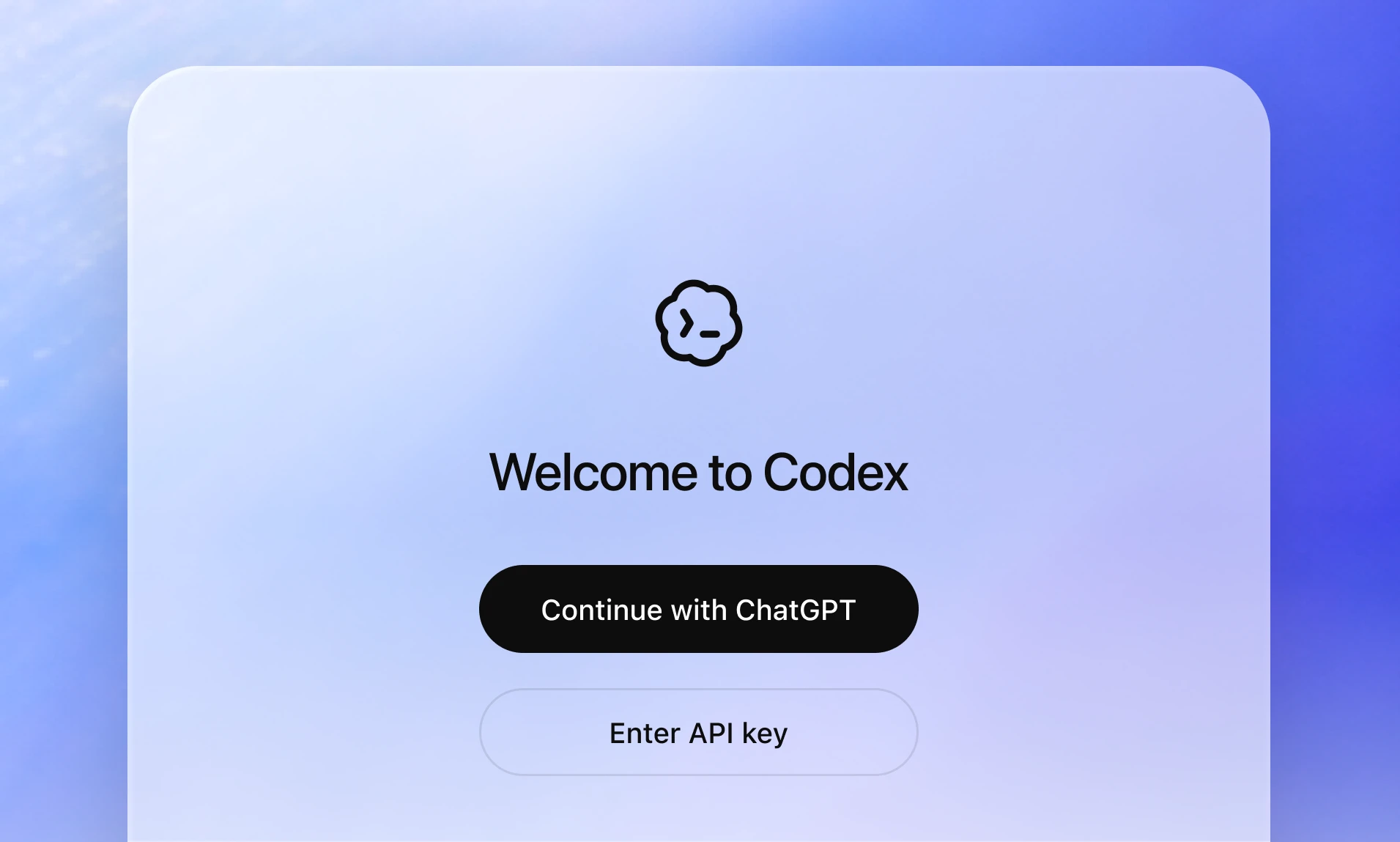
Continue with ChatGPTorEnter API key.
To choose the correct build:
- Apple menu -> About This Mac.
- If the chip is
Apple M1 / M2 / M3 / M4..., choose Apple Silicon. - If it says Intel, choose Intel.
Install the App on Windows
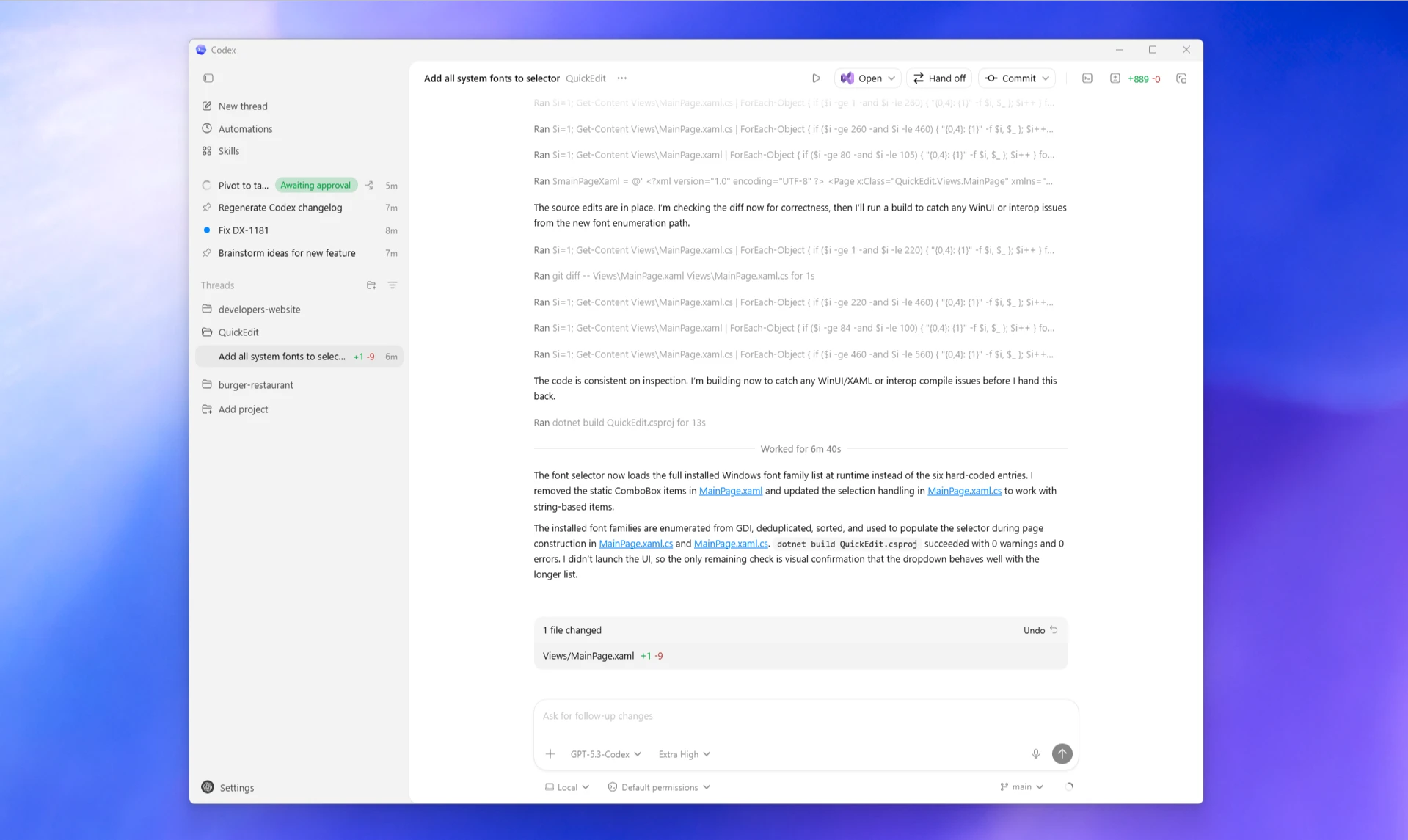
Windows users have two installation paths.
Option 1: Microsoft Store
- Open the Codex App for Windows docs.
- Use the Microsoft Store link.
- Open Codex from the Start menu after installation.
Option 2: PowerShell / command line
winget install Codex -s msstoreIf PowerShell blocks npm, scripts, or generated tools, inspect the current execution policy first:
Get-ExecutionPolicyIf your personal or organization policy allows it, you can use:
Set-ExecutionPolicy -ExecutionPolicy RemoteSignedWindows notes:
- Windows 11 is recommended.
- Git features require native Git. Install with
winget install Git.Gitwhen needed. - The app can use native PowerShell sandboxing or WSL2.
- If your project lives in WSL2, switch the app agent from Windows native to WSL2 in settings and restart the app, or use CLI directly inside WSL2.
- If the app and WSL2 CLI both need Codex configuration, remember that the Windows app uses
%USERPROFILE%.codex, while WSL2 CLI uses the Linux user's~/.codexby default. - Avoid opening the same repository repeatedly as both a native Windows path and a
\wsl$path.
Linux App Reality
OpenAI currently provides a notification form for Codex App on Linux rather than a stable Linux app installer. Linux users who want to use Codex now should use Codex CLI.
Practical choices:
- Need a desktop app: use Windows or macOS.
- Need native Linux development: use CLI on Linux.
- Use Windows with Linux tooling: use WSL2 plus CLI.
App Path 1: ChatGPT Sign-In
ChatGPT sign-in is best when you want to use a ChatGPT account, workspace permissions, and subscription credits. Use this purchase entry for the ChatGPT sign-in path:
https://dev.hkgpt.top/shop/40Flow:
- Open Codex App.
- Select
Continue with ChatGPT. - Complete ChatGPT sign-in and authorization in the browser.
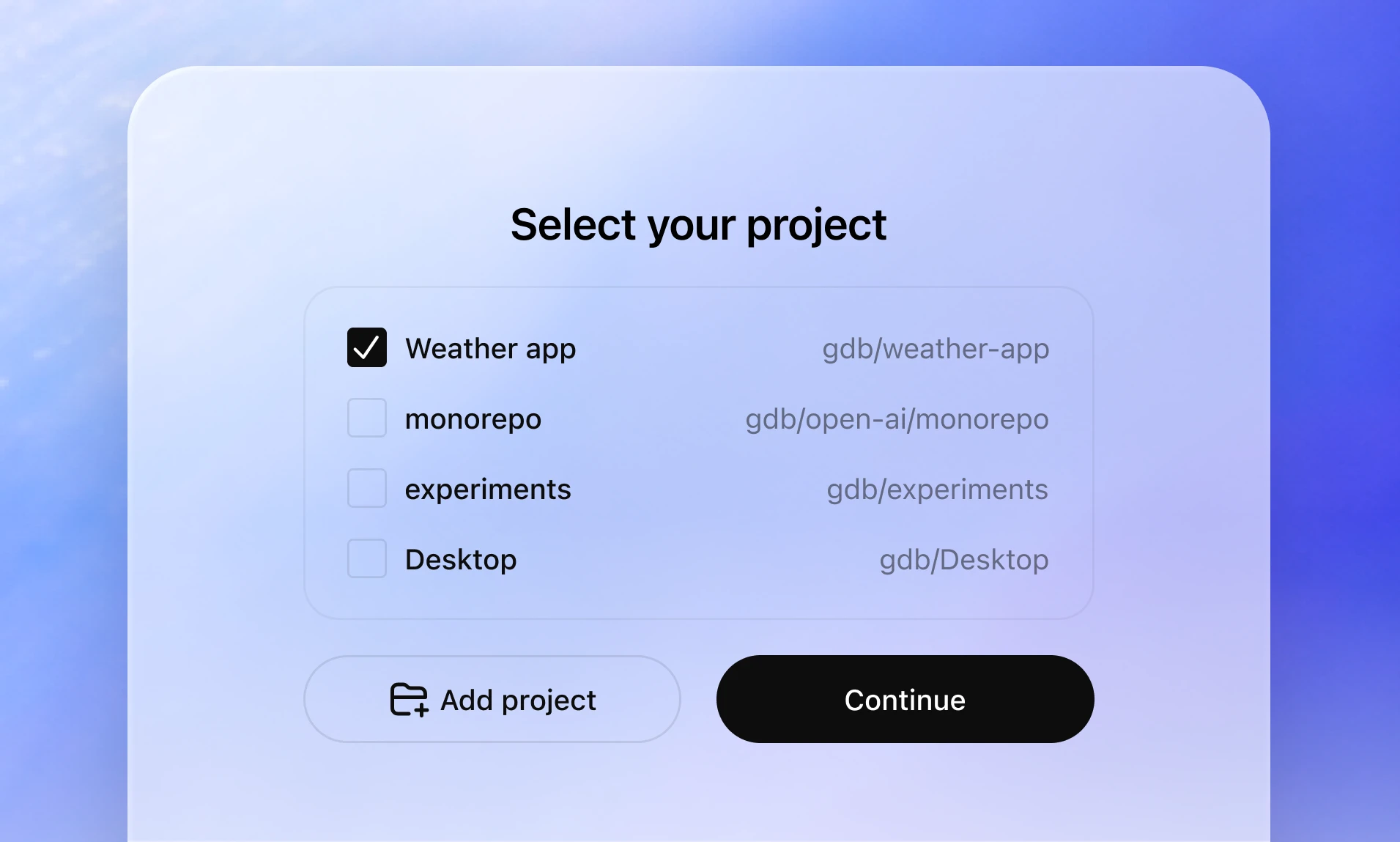
- Return to the app and choose a local folder or Git repository.
- Confirm the project and local working mode.
- Start with read-only project analysis before asking Codex to edit files.
First prompt:
Read-only analyze this project. Explain the structure, startup path, main risks, and commands I should verify next. Do not modify files.App Path 2: API Access
The official welcome screen includes an Enter API key entry. OpenAI API keys use OpenAI Platform billing. If you use a compatible service or proxy, confirm whether the current app or compatible client supports custom providers / Base URLs.
API access check
A client is suitable for https://gptapi.asia/v1 only if it lets you set a custom Base URL. If an app only accepts an official OpenAI API key and cannot change Base URL, use CLI custom provider configuration instead.
Base URL for the API path:
https://gptapi.asia/v1If the app or compatible client only asks for an API key:
YOUR_API_KEYIf it supports Base URL:
https://gptapi.asia/v1If it requires full endpoint URLs:
https://gptapi.asia/v1/chat/completions
https://gptapi.asia/v1/responses
https://gptapi.asia/v1/messages
Choose based on the situation:
- ChatGPT account, cloud threads, and subscription features: prefer ChatGPT sign-in and use
https://dev.hkgpt.top/shop/40. - Team keys, compatible APIs, and scripted calls: prefer API access.
- The app does not support custom Base URL: use CLI custom provider configuration.
Part 2: Codex CLI
Codex CLI is the one path every cross-platform user should know. Official docs list CLI support for macOS, Windows, and Linux. On Windows, it can run natively in PowerShell or inside WSL2.
CLI Support Matrix
| System | Installation | Recommended Runtime |
|---|---|---|
| macOS | Global npm install | Terminal, iTerm2, VS Code Terminal |
| Linux | Global npm install | Bash, Zsh, server terminal, containers |
| Windows 11 | Global npm install | Native PowerShell or WSL2 |
| Recent Windows 10 | Global npm install | Prefer WSL2; native PowerShell depends on system capabilities |
CLI is the cross-platform main path
If Node.js / npm works, Codex CLI can be installed on Windows, macOS, and Linux. On Windows, if native sandboxing, PowerShell, or paths become painful, switch to WSL2.
Install CLI on macOS
Check Node.js and npm:
node -v
npm -v
Install:
npm i -g @openai/codexRun:
codexUpgrade:
npm i -g @openai/codex@latestInstall CLI on Linux
Install Node.js using your preferred system package manager or version manager, then install Codex CLI:
node -v
npm -v
npm i -g @openai/codex
codex
If codex cannot be found, check the global npm bin path:
npm bin -gThen add that path to your shell PATH.
On servers, start with read-only analysis:
codexPrompt:
Read-only analyze the current directory. Do not modify files, do not perform write operations, and do not connect to external services.Install CLI on Windows: Native PowerShell
Check Node.js / npm:
node -v
npm -v
Install:
npm i -g @openai/codexRun:
codexUpgrade:
npm i -g @openai/codex@latestIf PowerShell reports npm.ps1 cannot be loaded, inspect and adjust execution policy only when appropriate:
Get-ExecutionPolicy
Set-ExecutionPolicy -ExecutionPolicy RemoteSigned
Native Windows is a good fit when your project lives on the Windows filesystem:
C:UsersyouProjectsmy-appInstall CLI on Windows: WSL2
If your project depends on Linux tooling, or your workflow already lives in WSL2, install CLI inside WSL2:
node -v
npm -v
npm i -g @openai/codex
codex
Prefer storing the project inside the Linux filesystem:
/home/you/projects/my-appAvoid switching the same repository back and forth between native Windows paths and WSL2 paths because permissions, line endings, Git status, and dependency caches can drift.
CLI Path 1: ChatGPT Sign-In
The first codex run prompts you to sign in. Official authentication docs describe two OpenAI sign-in methods:
- ChatGPT sign-in for subscription access and workspace policy.
- API key sign-in for usage-based access and API organization policy.
Purchase entry for the ChatGPT sign-in path:
https://dev.hkgpt.top/shop/40Standard flow:
codexThen:
- Choose ChatGPT sign-in.
- Complete the browser login and authorization.
- Let the browser return the token to the CLI.
- Start using the interactive terminal UI.
For headless, remote, or blocked localhost-callback environments, use device-code login:
codex login --device-authThen open the link in your browser and enter the one-time code.
CLI Path 2: API Access
Base URL for the API path:
https://gptapi.asia/v1Environment variable setup:
export OPENAI_API_KEY="YOUR_API_KEY"
export OPENAI_BASE_URL="https://gptapi.asia/v1"
codex
Windows PowerShell:
$env:OPENAI_API_KEY="YOUR_API_KEY"
$env:OPENAI_BASE_URL="https://gptapi.asia/v1"
codex
If your Codex CLI version uses provider configuration, edit:
~/.codex/config.tomlExample:
model = "YOUR_MODEL_NAME"
model_provider = "gptapi"

[model_providers.gptapi]
name = "gptapi.asia"
base_url = "https://gptapi.asia/v1"
env_key = "OPENAI_API_KEY"
Then set the key:
export OPENAI_API_KEY="YOUR_API_KEY"
codex
Windows PowerShell:
$env:OPENAI_API_KEY="YOUR_API_KEY"
codex
Configuration rules:
- Set
base_urltohttps://gptapi.asia/v1. - Use
env_keyfor the environment variable name. Do not hardcode real keys in project files. - Keep project-level
.codex/config.tomlfree of secrets. - Store real keys only in environment variables, credential managers, or secure local storage.
Do not store real keys in docs or repos
YOUR_API_KEY is a placeholder. Do not put real keys in Markdown, screenshots, Git commits, issues, tickets, or chat logs.
API Request Examples
OpenAI Chat Completions compatible format:
curl https://gptapi.asia/v1/chat/completions   -H "Authorization: Bearer YOUR_API_KEY"   -H "Content-Type: application/json"   -d '{
    "model": "YOUR_MODEL_NAME",
    "messages": [
      {
        "role": "user",
        "content": "Explain the main purpose of this project in three sentences."
      }
    ]
  }'
OpenAI Responses-style endpoint:
curl https://gptapi.asia/v1/responses   -H "Authorization: Bearer YOUR_API_KEY"   -H "Content-Type: application/json"   -d '{
    "model": "YOUR_MODEL_NAME",
    "input": "Read the requirement and propose the smallest reversible implementation plan."
  }'
Claude Messages official format:
curl https://gptapi.asia/v1/messages   -H "x-api-key: YOUR_API_KEY"   -H "anthropic-version: 2023-06-01"   -H "Content-Type: application/json"   -d '{
    "model": "YOUR_MODEL_NAME",
    "max_tokens": 800,
    "messages": [
      {
        "role": "user",
        "content": "Read the requirement first, then propose the smallest safe change."
      }
    ]
  }'
First Project Session
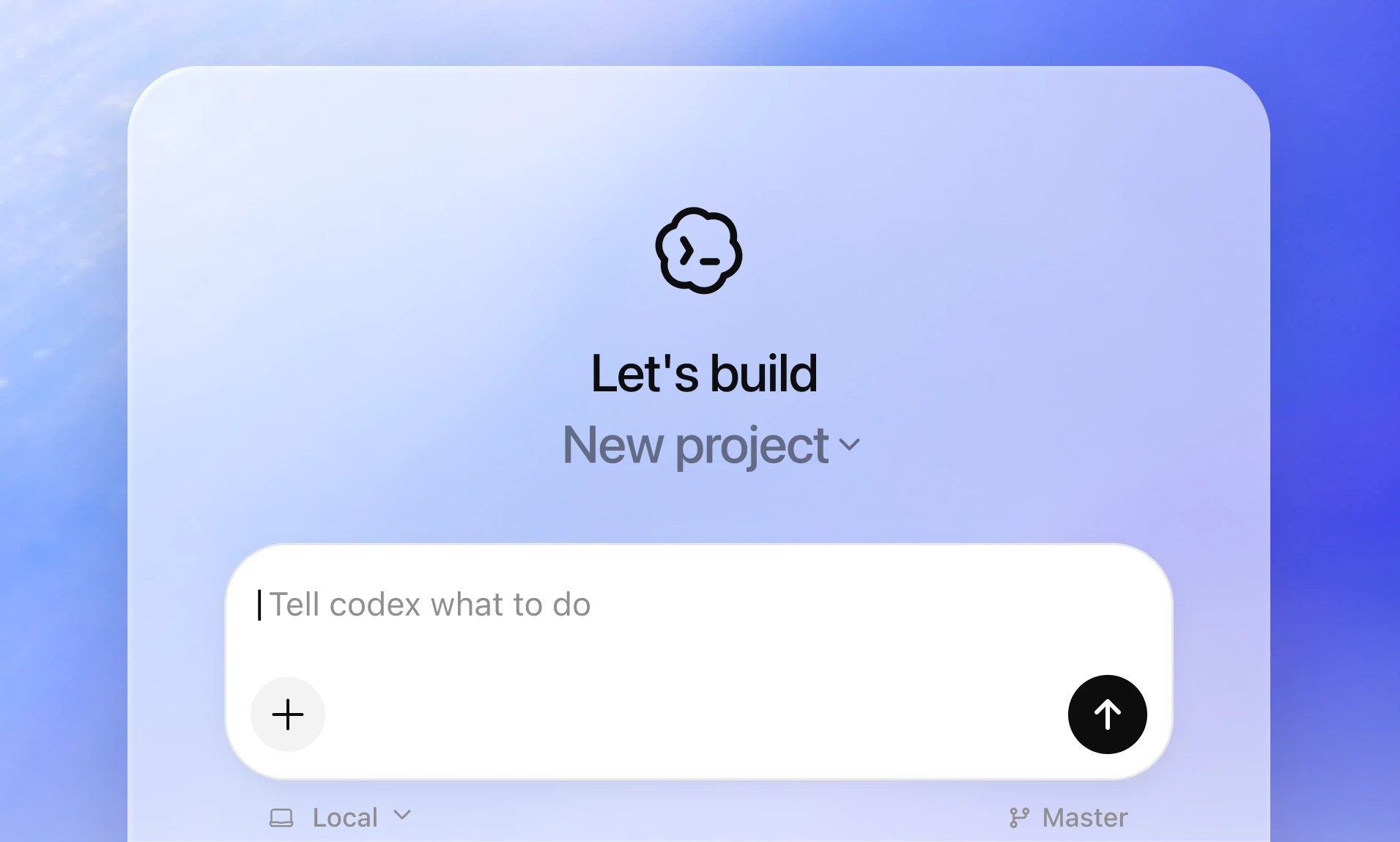
Enter the project root:
cd /path/to/your-project
codex
Start with a read-only prompt:
Read-only analyze this project. Do not modify files.

Output:
1. Project type and main stack.
2. Startup, build, and test commands.
3. Key folders and entry files.
4. Most likely risk areas.
5. What information you need before making a small change.
After Codex understands the project, give it a narrow task:
Goal: Fix mobile button overflow on the login page.
Scope: Only edit the login page component and related styles.
Do not: Change auth logic, refactor global layout, or add a UI library.
Verify: Run type checks and explain how to validate at 375px width.
Common Workflows
Read Code
Read-only analyze this repository. Show the folder structure first, then explain the core business flow. Do not modify files.Implement a Small Change
Locate the relevant files first, then propose a change plan. After confirming the scope, edit only the necessary files.Debug
Here is the error log. Identify the three most likely causes first, then design the smallest reproduction and validation steps. Do not edit code yet.Test
Run the existing tests. If they fail, summarize the failures and related files before rewriting anything.Review
Review the current diff. Prioritize bugs, regressions, missing tests, and sensitive information.Write Documentation
Update the user documentation based on the implementation. Steps must be executable, examples must use placeholders, and no real keys should appear.Safety Boundaries
Follow these rules:
- Do not paste real API keys, tokens, certificates, or database connection strings into public conversations.
- Do not commit
~/.codex/auth.json, environment variables, private keys, or internal config files. - Do not let Codex deploy, delete databases, restart services, or edit server configuration without impact scope and rollback.
- Do not upload customer data, user privacy data, or internal documents to unapproved platforms.
- Do not let it perform broad rewrites, batch replacements, or deletion of unknown files just to save time.
- For payments, orders, purchases, permissions, admin, databases, gateways, Nginx, or Cloudflare, start with read-only analysis.
When unsure, use:
Read-only analyze this. Do not modify files, do not perform write operations, and do not connect to external services.FAQ
1. Where is the purchase entry?
Use this for the ChatGPT sign-in path:
https://dev.hkgpt.top/shop/402. What API Base URL should I use?
Use:
https://gptapi.asia/v13. Should I choose App or CLI?
- Desktop UI, multiple threads, review panes: choose App.
- Linux, servers, terminals, scripts, or WSL2: choose CLI.
- Custom provider / Base URL: prefer CLI.
- Official OpenAI ChatGPT subscription and cloud features: prefer ChatGPT sign-in.
4. Can Linux install Codex?
Linux can use Codex CLI. The official Codex App is currently available on macOS and Windows, with Linux app availability handled through notification registration. The stable Linux path today is CLI.
5. Should Windows use PowerShell or WSL2?
Use native PowerShell when the project and tooling live on Windows.
Use WSL2 when the project depends on Linux tooling, Docker, Bash scripts, or an existing WSL2 workflow.
6. Why does the terminal not continue after login?
The browser callback may be blocked, or the environment may not support the localhost callback. Use:
codex login --device-auth7. Why does the API request return 401?
Check:
- The API key is complete.
- The request header is correct.
- Base URL is
https://gptapi.asia/v1. - The current client really supports a custom Base URL.
8. Why does the API request return 404?
The path is usually wrong:
- Chat Completions:
/v1/chat/completions - Responses:
/v1/responses - Claude Messages:
/v1/messages
9. Can Codex directly change my production server?
Do not make that the default. Ask Codex to read-only analyze the issue first, then list impact scope, rollback method, and the smallest change path. Only authorize specific commands and paths after you confirm the risk.